Knock agent
Use the Knock agent in the dashboard to answer questions, inspect resources, and build customer messaging through conversation.
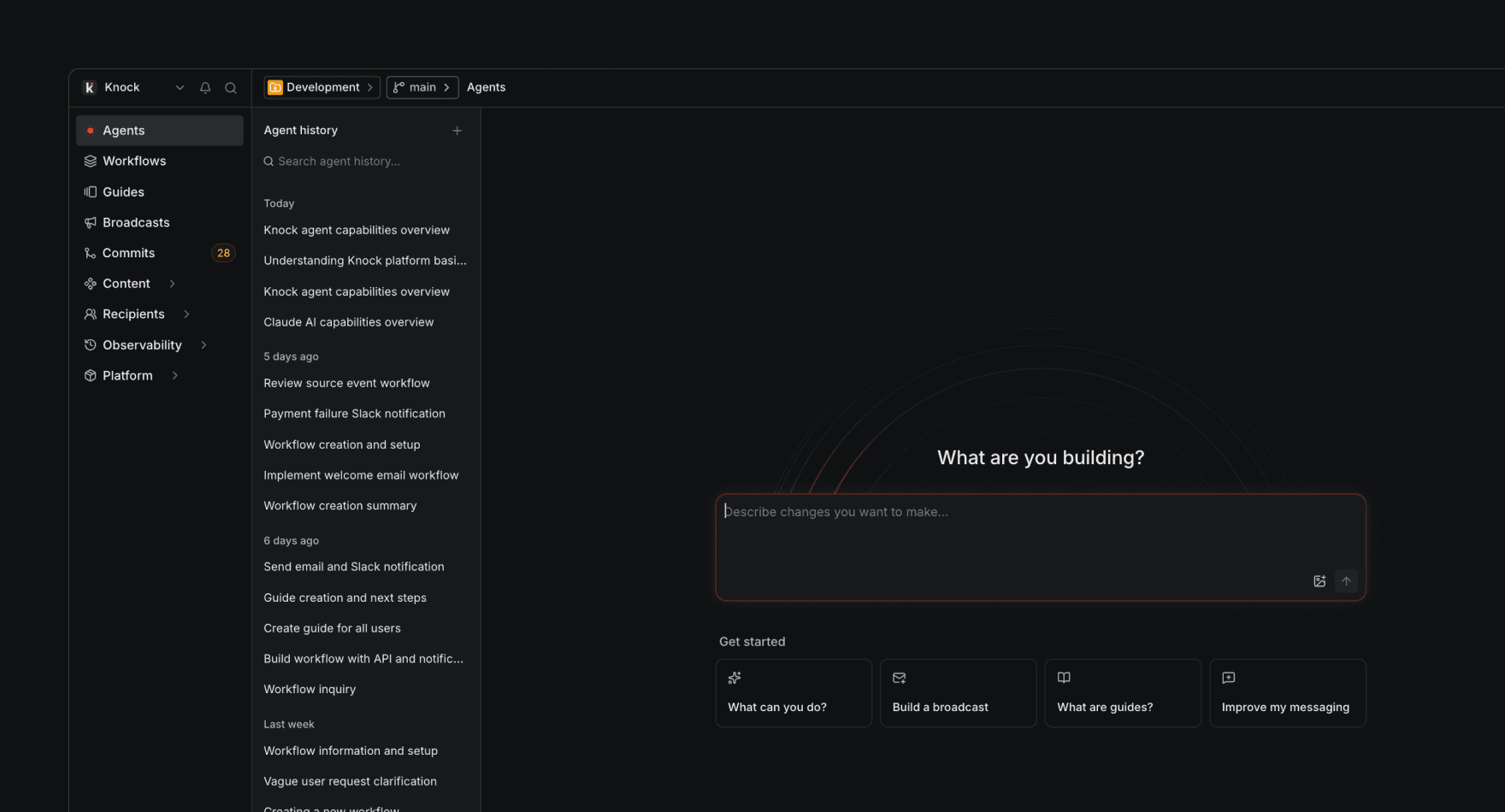
The Knock agent is an AI-powered assistant built into the Knock dashboard.
You can use it to do anything you'd normally do in the dashboard, including create workflows, templates, guides, broadcasts, and partials. You can also use the Knock agent to learn about Knock concepts and inspect existing resources.
Get started with the agent
#Start from the Agents page
#The Knock agent is available on the Agents page in the dashboard. This page lists all of your past conversations with the agent, and allows you to create a new conversation.
Start from anywhere in the Knock dashboard
#On any dashboard page where the agent is enabled, you can use the agent prompt bar at the bottom of the page to kick off a new conversation.
Once the agent is running, you can open the agent in a sidebar (anchored) or floating (overlay) layout to see it running. Use Cmd+J (Mac) or Ctrl+J (Windows/Linux), or the toggle in the main header to open/close the agent runner.
What the Knock agent can do
#Read and inspect resources
#The agent has full access to all of your Knock resources, including workflows, broadcasts, partials, email layouts, audiences, message types, and guides.
Create and modify resources
#The agent can create or update workflows, broadcasts, partials, email layouts, audiences, message types, and guides using dedicated tools. Each maps to a customer messaging primitive you manage in the dashboard.
Search the web
#The agent can run a web search for structured results and fetch full page content when you need up-to-date or external reference material.
What the agent cannot do
#- Manage account settings such as billing, users, roles, or invites
- Delete resources
- Commit or promote changes to environments
- Return usage or analytics data
- Run tests of your workflows or broadcasts
Context awareness
#The agent receives context for what you are viewing in the dashboard, including:
- Active environment. Are you in development, production, or another environment.
- Active resource keys. The workflow, broadcast, partial, so on that you're currently viewing.
- System context. You can configure account-level context and custom instructions in your account AI settings that are used in all prompts.
The agent is also fully aware of your partials, email layouts, and translations and so can use those to build or improve your messaging templates.
Permissions and authorization
#The agent respects the permissions you have in your account. If you don't have permission to manage a resource, the agent will not be able to create or update it either.
Configuration
#Workspace admins configure AI under Settings > AI settings:
- Agent workflow function. Lets builders add an AI agent step to workflows; consumes AI credits.
- Knock agents. Enables the conversational assistant for account members; does not consume AI credits (rollout may use feature flags such as
dashboard-agent-mode.) - Company context. Free-text description of your product so answers stay on-brand (up to 5,000 characters.)
- Custom instructions. Free-text rules included in every agent conversation (up to 5,000 characters.)
Related resources
#- Connect external clients through the MCP server
- Give coding agents packaged knowledge with Skills